Tuesday, June 7, 2016

Apple Terms Glossary

It's often apparent that many people have problems solving their own problems because they don't know the correct question to ask. If you don't know what something is called, how can you search Google for the correct way to fix it. Here are some basic terms you should know about your Mac.
Finder - The basic overall organizational structure of your mac computer. It’s within Finder that you can create folders and subfolders, drag and drop files, change file names
Sidebar: Hidden by default, this is the extremely useful vertical bar in the Finder window. Choose to View Sidebar in the Finder’s View menu, or Command Shift S. Add your most used folders to the Sidebar for easy access to that folder, delete folders by clicking while holding the control key.
Menu Bar: The very top horizontal bar of your screen, holds a multitude of functions.
Toolbar: Each individual application has a toolbar of its own at the top of its screen.
Apple Menu: Extreme top left of your screen, the Apple Menu contains basic functions such as restart, shut down, sleep, links to system preferences, software updates and System Profiler
Dock: By default lives at the bottom of your screen, but can be adjusted to the left, right, or hidden. Keep your most used applications here, plus any apps currently will be on your dock, highlighted by a little spotlight
System Profiler: Located by choosing About this Mac in the Apple Menu, here you’ll find your processor, amount of RAM, OS, serial number and more, useful to you and your technician.

Monday, December 1, 2014

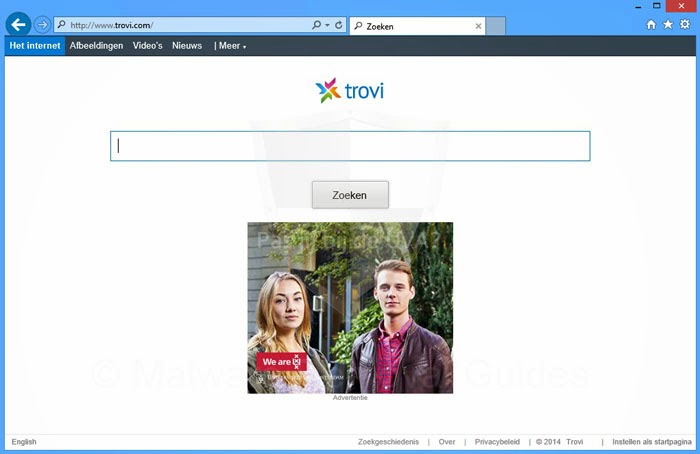
Removing the Trovi 'Virus' and Other Browser Hijackers

I've had multiple calls in the past two weeks about what's become known as the Trovi Virus, as well as other Browser Hijackers. These aren't technically viruses, but are considered malware, and, in short, have the ability to change your browser's homepage to their preferred ad-laden page, effectively cutting off your regular internet habits and in some cases, suggesting your computer is infected, and urging you to call a number and hire them to clean up your machine. I've seen at least 3 cases where people have paid upwards of 3 and even 500 dollars to these scammers.


Because there have been at least 4 different examples of these browser hijackers, I don't have a quick one-step solution to be able to fix these problems. The first thing I would suggest is DO NOT call a foreign number, DO NOT give them your credit card number or computer password, and DO NOT give them access to your computer.

Here are some steps you should take if you suspect you've been infected, and to avoid this situation in the future.

1. Have a back-up or secondary browser. If your Safari becomes infected, you will be able to at least browse the internet and / or download software to eradicate this malware.

2. If Safari has been infected, reset Safari in the Safari menu. To reset Safari 8 in Yosemite, quit the application, then relaunch it holding down the shift key.

3. After resetting Safari, you may also have to reset your homepage. One of the things the Trovi Virus does is change your homepage to its own nefarious search engine. Do this in the Safari general settings.

4. Delete cookies and turn off javascript. You can do this in your Safari Security and Privacy preferences.

5. If you can't get into your Safari preferences because of the malware, you may have to boot in Safe Mode, which will turn off all extensions and allow you to do system maintenance. To do this, restart the machine while holding down the Shift key.

6. DO NOT download MacKeeper. It has no value, I don't trust it, and I consider it malware too.

7. Try downloading and running AdWareCleaner. I generally don't trust 3rd party applications, but I  had success with it on one occasion. ADWAREMEDIC DOWNLOAD LINK

8. You may have to dig a little deeper into your system and user library to remove preference files relating to the Conduit, Only-Search, and Trovi toolbars.

9. Keep your system software up to date. Generally Apple responds quickly to situations like this and will release a Security Update to deal with it. I haven't seen anything yet, but I'm still hoping.

10. DO NOT download and install any Anti-Virus for Mac softwares. They don't work and I've seen them interfere with internet connectivity.

11. Download and enable the Adblock extension from the Apple site. This will remove most ads from most sites.

As you can see, there are multiple issues and multiple solutions going on. I'll keep updating this post to reflect the solutions I've used.

Wednesday, April 23, 2014

Get Some Peace, Stay Connected Using Do Not Disturb Mode on Your iPhone


Turn On 'Do Not Disturb' in the Control Center
I must have inadvertently turned on 'Do Not Disturb' mode on my iPhone 4S a couple months ago, because my phone seemed to randomly stop ringing for most phone calls and text messages. That was OK for the most part, because I had more or less stopped answering my phone anyway, and no text message was ever so important that it couldn't wait a few minutes for me to visually check my screen. Still, it didn't make sense that some calls and messages got through while others did not. And as one who has 50 + custom ring and text tones, I was missing out on my personal symphony.

Do Not Disturb mode is available to you through either the Control Center, or with more options through the main Settings page in IOS 7. You can customize which calls and texts will ring through from either your phone favourites, or any group in your address book. Keep in mind the calls and texts are still going to voicemail, and available visually on the screen, your phone just won't alert you through the speaker. You can schedule when it kicks in, say from 5:00 pm till 9:00 am and buy yourself some peace and quiet, while keeping closely, if not constantly connected.

Friday, February 14, 2014

Back Up Your Hard Drive With Time Machine

Backing up your hard drive has never been easier, thanks to the software Apple has been including with your Operating System since Leopard 10.5.

I've done it myself, more than once, it's true. I've had hard drives fail on me without having a back-up of any kind. It was devastating, but eventually I learned, and now I keep redundant back-ups of all my data, thanks to the affordability of external hard drives and the native Time Machine software. Still, I see it every week, and my un-scientific study shows a good 40-60% of people still don't keep a good back-up.

Here's how easy it is to do.

1.) Plug any external hard drive into the USB port on your Mac.
2.) When the Time Machine software launches and prompts you whether or not you'd like to use said external hard drive as your Time Machine back-up, say yes.
3.) Get some sleep.

Seriously, it's that easy. In operating systems Mountain Lion 10.8 and previous, you don't even have to partition the disk, just click yes and ignore. In Mavericks you will have to partition the hard drive as Mac OS Extended (journaled) in Disk Utility, but the software will lead you like an ox by the nose through every step.

The beauty of Time Machine, is that you can access old files that you've changed in the past, and restore the old configuration of that file to the present date. Consider if you've changed your iPhoto library, or deleted an important email, or edited a movie, document or Garageband file. Also, if your hard drive should fail, and the probability of that is 100%, you can restore your entire system, docs, and network settings from that most recent Time Machine back-up.


Friday, February 7, 2014

How to Install the Adobe Flash Update

Lots of emails this week about the new Adobe Flash update and how to install it. They seem to update this plugin every 4 to 6 weeks, and it's essential to many online services like YouTube videos and other sites

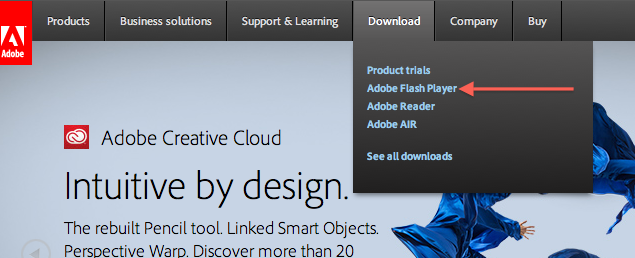
First, go directly to the Adobe.com website and navigate to Downloads.

Select the Adobe Flash update and click to download. 

Now this is where most people get tripped up. After downloading the software, you still have to go through several steps to complete the install. Locate the update .dmg (disk mounted image) file in your downloads folder. Double click to launch the installer.

Choose the volume where you wish to install the software (your Macintosh HD) and follow the prompts the installer presents. It will require that you close any browsers, Safari, Firefox etc., before continuing.

 You also have to agree to the software terms and conditions. 

Once you've completed all of these steps, you should be good to go.

Monday, November 25, 2013

Apple Quick Tips Newsletter Volume VII

Up Your Media's Apple Quick Tips Newsletter Volume VII

Email Webpage Link Or Contents


  • As with anything Apple, there's always more than one way to skin a cat, or in this case, to email a Safari webpage to a friend. With the webpage open, go to your File menu and choose either the Mail Contents, or Mail Link To This Page. Advanced users might prefer to use the keyboard shortcuts. Alternately, you can customize your Safari Toolbar to show the email toolbar icon

Add Auto-Responder To Your Emails

You can add an auto-responder to your email, so that all incoming emails are automatically responded to with an instant and consistent message. This can be handy when on holiday, or for many other reasons. Go to your Preferences menu in your Mail program and navigate to the Rules panel. Choose 'Add Rule' and give your new rule a name. Select a parameter from the list (ie., sender in address book, subject includes, etc.) choose to reply to message and type in your chosen reply. Apply rule. 

Delete Previous Recipients

Your email program will auto-fill the address of any recipient you may have emailed in the past. To edit or delete a previous recipient, navigate to the 'window' menu in your top menu bar, select 'previous recipients' and clean up any addresses you no longer wish to autofill


Change Email Signature on iPad / iPhone

Your emails don't have to go out with the same old default signature 'Sent from my iPhone'. To customize this line, go the settings icon on your IOS device home screen, choose 'mail, contacts and calendars' and navigate to the signatures tab. Swipe the arrow to the right and input the signature of your choice. 

Add Find My iPhone

Every iPhone or iPad user should install and deploy this free app from the App store. Launch the app and sign in using your Apple ID. If you should ever misplace your iPhone, or have it stolen, you can login to iCloud from any other computer and find your device on a map. You can also play a sound on the iPhone to help you locate it, you can lock it and you can even erase it. Keep in mind that the power has to be on for this feature to work, a smarter thief may be able to power the device down to avoid detection


Add Desktop Shortcut From Your Favourite Website And Change Icon

It's easy to add a shortcut to your favourite website to your desktop, simply open the website in Safari, grab the favicon to the left of the website address in the toolbar, and drag it to your desktop. To change the icon, copy an image you'd like to replace it with, click the icon in your desktop, choose Get Info, and paste the new image onto the old one.

Change Email Profile Picture

Your email goes out with your account profile picture in the top right corner. To change the picture displayed in your mail, go to your Address Book and find your User Card, indicated by the icon shown. Double click on the photo or image displayed, then click Choose to navigate to your iPhoto library and choose a new photo, or through your folders to find another image. You can also use the camera to take a photo using your iSight camera.


Monday, April 22, 2013

Up Your Media Quick Mac Tips Newsletter Volume VI


Manage iPhoto Duplicates with Duplicate Cleaner for iPhoto

This 3rd party application, available for free at your App store, actually works to locate and delete exact iPhoto duplicates. Free up a little disk space and trim down those annoying duplicates. 


Create PDFs with the print function.

The easiest way to create a PDF (portable document format - the best format for sharing documents across multiple platforms), open your document in the application where you created it, (safari, pages, word, mail) click print, in the lower left corner of the dialogue box, open the 'pdf' drop-down box and choose 'save as PDF'

Merge multi-page PDFs with Preview. 

Now that you've created your PDF with either the print function, or with your scanner, you can merge multiple one page documents into single documents with multiple pages. Use preview to open both documents, choose the View menu and select 'show sidebar'. Drag the document's icon from the sidebar directly over top of the second document's icon and save the new multiple page document.

Email link from Safari

This one's easy. When browsing in Safari, you can mail the contents of your page by going to your file menu and choosing 'mail contents of this page.'  or 'mail link to this page' 

Capitalize with Pages

You can transform your Pages documents to All Caps, Small Caps or none, using the Format > Font > Capitalization feature in the Format drop down menu. 

Wednesday, November 28, 2012

Creating Movie and Screen Recordings Using Quickime.

First I learned it, then I used it, then I knew it. How to create movie and screen recordings using Quicktime.

Saturday, September 29, 2012

Fun with iPhone Ringtones

I've been having a great time lately playing around with my iPhone ringtones. It's a fun and easy way to customize how your phone talks to you, and allows you to assign specific sounds for individual contacts, particularly the ones you hear from often, so you know who's phoning or texting you without even looking at your phone. In a room full of iPhones, it can help distinguish whether it's actually your phone that's ringing or someone else's. And with some of these tones, it can help you sound super-cool when out in public.

The process of installing these ringtones is simple. Download the file (it's an .m4a audio file), locate it in your Finder, change the extension to .m4r, double click to open it in iTunes, and sync your phone with its new ringtones.

To assign a ringtone to a specific contact, call up that contact in your phone's address book, below his or her phone number, you will see 2 tabs that say ringtone and text tone. Open one up at a time, and browse through the default and custom tones until you select the most appropriate one. Tada!


Napoleon Dynamite Text Tone 1 m4a file - "Uh..Idiot!" the perfect text tone to alert you to when idiots are trying to get ahold of you - 4 seconds

Napoleon Dynamite Text Tone 2 m4a file - "Napoleon, don't be jealous that I've been chatting online with babes all day. Besides, we both know I'm training to be a cagefighter." - 9 seconds

Ron Burgundy Text Tone 1 m4a file - "Hey everyone! Come and see how good I look" - 5 seconds

Ron Burgundy Text Tone 2 m4a file - "I'm kind of a big deal. People know me." - 4 seconds

Mac Boot Chime Text Tone m4a file - That's right, everybody's favourite sound. So gentle, so friendly. For the music dorks out there, it's a rich, wide C Major chord - 3 seconds

Steve! - m4a file - This one's pretty funny, I recorded it myself for a married friend of mine, meant to emulate the sound of his wife hollering at him to take out the garbage. Tongue somewhat in cheek. 8 seconds.

Office Space Text Tone m4a file - "I have people skills! I am good at dealing with people. Can't you understand that? What the hell is wrong with you people!" - 8 seconds

You Sexy Thing m4a file - by Hot Chocolate - 18 seconds - Perhaps an appropriate ringtone for your paramour, or maybe a default ringtone to remind yourself of your own sexiness at every call.

Superstitious m4a file - Classic Stevie Wonder riff.

Opening Theme from Grease m4a file - Great attention grabber from one of history's finest movies.

Communication Breakdown m4a file - Opening riff from Led Zeppelin's debut self-titled album, it set the stage for the future of hard rock and heavy metal. Rock On! 11 seconds

Show Me Your Genitals m4a file - Hilarious and probably offensive, it's the chorus of Jon LaJoie comedy song. Obviously a ringtone you want to assign to that special contact(s). Can be embarrassing if it goes off anywhere in public. 12 seconds

Golden Retriever - The Gorillaz m4a file - For your favourite golden retriever or dog lover. Such a dumb and beautiful creature. We all know one. - 28 secs

The Beachcombers Theme - Punk Rock Version m4a file - Who wouldn't want to be able to hearken back on old Nick, Jesse, The Reach and Relic with every ring of your phone. You can use these as alarm tones too. - 17 secs

Giddy Up Go m4a file - Possibly kinda stupid, opening shots from Red Sovine's CB era trucker song. Useful as an annoyance towards people who hate CB Trucker songs. 27 secs

Hey Ya, by OutKast m4a file - "Lend me some sugar. I am your neighbour! Shake it, shake it, shake it, shake it, shake it like a poloroid picture. - 30 secs

O Green World - Gorillaz m4a file - Good songs make for good ringtones.


Sunday, September 2, 2012

Passwords and Security for Macs and for Mail


t’s a common perception that Macintosh computers are immune to viruses and malware, but technically, that’s not quite true. Despite Apple’s more secure UNIX based operating system, any computer is susceptible to attacks from unscrupulous programmers. However, in 20 years of using Macs online on a daily professional basis, I’ve yet to hear first hand of any successful, debilitating mass attack. To this day, the only reason I have an antivirus software on my computer, is because I was asked by a client to test it. I check it every 2 weeks or so, with no reported attacks.

Email is another issue that can be problematic from a security standpoint, particularly webmail services, such as Hotmail, Yahoo and Gmail. Hotmail is probably one of the most hacked email services out there, and you’ve probably gotten emails in the past year from ‘friends’ whose accounts have been compromised, and who have unwittingly spammed their entire contacts list. Your best defense against such potentially harmful hacking is to change your password to something more secure, and change it again every few months. 

When I say a more ‘secure’ password, that means that it should not be a common word, or string of numbers.  According to the New York Times, the most common passwords out there are ‘12345’, followed (logically) by ‘123456’, and then, if you can believe it, ‘password’. And if you’re one of the 70% of people I meet whose password is the name of their pet, or their children, don’t worry, there’s help for you.

One trick I use when creating a new password is to substitute certain letters for numerals, ie., if the word contains an ‘O’, I’ll use zero. If it has an ‘E’, I’ll use  the number three, and if there’s an ‘I’, I’ll substitute a one. Also, any letter in the word that falls on the top row of the qwerty keyboard, I will capitalize, thus making the password far harder to hack by any online robot. Visually it will look similar to the word I find easy to remember, but it’s far more secure against hackers. For instance, if one of my favourite authors is Farley Mowat, I might have a password that looks like faRl3Y. If my pet’s name is Luther, my password mght look like lUTh3r. It might. 

Passwords are probably the most problematic issue for casual users. If I had a nickel for every time I asked a client for their computer, email, Skype, Apple ID or wifi password, only to be greeted with a blank stare, I’d be a wealthy man. As discussed in the last installment, the Keychain access utility on your Mac will remember your lesser passwords for you, and allow you to retrieve them if need be, but you will need to know your computer user password to access them. 

You can get away with not having your Apple computer’s password for a short period of time, but any software updates or installs will require that you remember it eventually. Luckily you can change the user password by booting from your system disk, included in the box at purchase time. To do so, insert the disk, click restart and hold down the ‘C’ key until you see the grey screen and spinning gear. Once it’s up and running, there will be a list of utilities in a drop-down box. Choose ‘reset password’ and input a password that you will remember, according to some of the previous hints. If you’re running Lion or Mountain Lion, hold the Option key on startup and choose the Recovery HD icon. That will bring up a similar set of options.

When it comes to passwords, my suggestion is to use one or two straightforward passwords for inconsequential websites, like Facebook or Skype, and another one or two more secure passwords for more sensitive uses, such as email or online banking. And it wouldn’t kill you to write them down somewhere and store them somewhere not far away, because your main security threat is not the person who breaks into your home to steal your valuables, but some professional in an office in Russia, or his mom’s basement in Dakron, sniffing around for trouble. Protect yourself with strong passwords.

Friday, June 29, 2012

Bulletproof Email Solutions for iPhone and iPad


Now that you've got an iPhone and / or iPad, your email app is sure to be one of your most important tools for staying connected with friends and family while out on the road, or on the beach.

The major cellular providers on the Island, Rogers and Telus, have some obscure and hard-to-find email setup instructions for Apple devices. Shaw, the dominant internet provider, also fails to give a coherent solution for sending and receiving emails while outside your home’s wireless network area. Even if you manage to input the correct credentials, the results are often inconsistent and generally frustrating.

In my experience, your best and simplest bet for email on your mobile device is to use a Gmail account, and filter your existing email through that account. You can continue to send mail using your regular address no matter where you are, whether at home, in a coffee shop, or lounging poolside. Gmail is secure, free, accessible anywhere, and backed by Google, one of the largest, most respected companies in the world.

Navigate to http://gmail.com and click the sign up button, then follow the simple steps to create a Google account. Your Google user name will become your Gmail address, ie., yourname@gmail.com.

Adding your new Gmail address to your mobile device is dirt-simple. Just type the address into your mail settings along with your password, and the device will add the rest of the settings automatically.

Once you’ve created the address, you can navigate to the Gmail settings menu to allow you to send email from your existing Shaw, Telus, or any other address. That option appears in the ‘Accounts and Import’ panel of your Gmail settings. Add your existing address in the ‘Send Mail As’ option in the list. You’ll have to then confirm your account via an email that Google will send you.

On the same settings page, you can also choose to use Gmail to check the messages from your other account, thus allowing you to keep just one email account on your device. Because Gmail uses the IMAP protocol, this will help sync your messages across all your applicable devices, ie., if you delete an email from your phone, that message will also be deleted from your iMac, your iPhone, and your iPad.

There may come a day when local service providers catch up with the technology their customers are using, but until then, Gmail will do just nicely, thank you.


Friday, April 27, 2012

Your Startup Disk Is Almost Full - But not for long!

I've seen the same issue on 3 different MacBooks in the past week, a computer that basically ceases to function due to a completely filled hard drive. Your computer needs free space (aka headspace) to be able to 'think', room to place the data while it's busy computing. The original MacBooks shipped with hard drives as small as 60 GB and up to 120 or 160 GB, which at the time was a fairly decent size considering the proportions of the files it was using. iTunes libraries have expanded, cameras have increased their pixel resolutions and people are downloading movies at a rampant pace, leading to the problem of lack of storage. 

Luckily there's no reason not to keep that computer on the info super-highway, and the fix is cheap and easy. There are two ways to mitigate this problem, either by upgrading the internal hard drive or by using an external drive to store your files. The former is my preferred method and a 500 GB internal drive can be yours in less than 24 hours and for a cost of around $225.00, complete with a restoration of your old data onto the new drive.

The latter is just as easy and can be as cheap as $100-$150 for a 500 GB or 1 TB drive. Make sure you format the drive using Disk Utility as Mac OS Extended, since your MacBook can communicate with the drive right out of the box, but you will likely have problems dragging larger files onto the drive if it's formatted as MS DOS FAT. Drag your movie files and other large folders directly onto the drive and erase them off your internal disk to free up headspace. If you have a substantial iTunes library you can use the external drive as the source of your music files, same goes with iPhoto and your iMovie media files. You can continue to use the external drive as your Time Machine backup (also highly recommended).

Times are tight and most people don't have the budget to buy a brand new computer every time their older machine fills up. This is quick, cheap and easy way to extend the life of your older machine.

Thursday, April 12, 2012

Apple Quick Tips Newsletter Vol V

We have to start this newsletter by touching on the recent reports of an Apple computer targetted Trojan 'virus' called Flashback. Flashback reared its ugly head last week and has caused widespread hyperbole and minor panic. It's the first legitimate virus most Mac users have encountered and has resulted in a flood of "I told you sos" from the PC community. So far it has infected over 650,000 computers. Evidently this piece of malware poses as a Flash installation tool. Upon infection the trojan targets specific webpages, modifying them with the intent of committing pay-per-click fraud.

If you're running Lion 10.7.3 or Snow Leopard 10.6.8 you are not in any danger. Apple has already released a patch that fixes the hole in the Java application, and if you do a simple software update you will have no problems with this Trojan. Apple has also announced that it will release a removal tool in the next few days.

For Macs running Mac OS X v10.5 or earlier you can protect yourself by disabling Java in your web browser's preferences.

For anyone confident with using the Terminal command line interface, you can check for the existence of the virus (and remove it if it is there) F-Secure has posted the instructions here, and recently added a more user-friendly detection tool. Feel free to contact me for more information.

Now on to the tips.

iTunes Home Sharing. This is one of my favourite features in iTunes, perfect for a home with multiple computers, mobile devices and iTunes libraries. Simply go to the advanced tab in your iTunes menu bar, turn on Home Sharing using your Apple ID and do the same for all your devices. You can find the control in your Music settings of your iPhone and iPad. Once Home Sharing is on you can access all the music and other files in any of your iTunes libraries from any of your devices.


Creating Multiple iPhoto Databases As our iPhoto libraries continue to grow, thus gobbling up computer space and speed, it can become necessary to run multiple iPhoto libraries, for example a working library, an archived library, or a topic-specific library. You'll probably want to export photos from your main library to add to the new library, then close the iPhoto progra. Now hold down the Option key while re-opening. You're given a dialogue that will allow you to either create a new library or toggle between your existing libraries. Give the new library a name and then import the selected photos into your new library.

Four Favourite iPhone Apps
Everlight Free - A flashlight app right on your phone.
Remote - Allows you to control your iTunes library or Apple TV from your phone
Shazam - This app is for music lovers, it will help identify untitled songs in your iTunes library or on the radio.
Dragon Dictation - Records your voice and transposes it into text. Actually works.

Monday, April 2, 2012

Notice of telephone phishing scam directed at Apple users.

Notice of a telephone phishing scam directed at Apple users, a client of mine was just called by someone with an accent claiming to be from Apple, that her emails were being compromised, and directing her to go to her computer, open Safari and start typing. She asked to speak to his manager and the line went dead.

More than likely they're trying to sell some kind of bogus security software with the aim of obtaining your credit card number or other personal information.

Be aware, Apple would and will never phone you for any reason, especially to discuss sensitive security issues regarding your computer. Either collect the number off your call display and forward it to the RCMP, or simply invite the caller to go pound sand and carry on with your day. DO NOT buy any software from these scammers.

Wednesday, January 11, 2012

Up Your Media's Quick Tips Newsletter Volume IV

Rebuild iPhoto Library. From time to time, through no fault of your own, your iPhoto database may become corrupt and unable to view some of your images. Your first step in repairing those issues is to rebuild that iPhoto database. Quit the program and then reopen it while holding down the command and option keys until you're prompted to rebuild the library. You'll be offered a list of options, choose the one(s) you want and click rebuild. Go here for more information on the rebuild process.

Send bulk email to address book group. It's dead easy to create email groups in your Mac Address Book application, and just as easy to send a bulk email to that group. In your address book app, simply click the + (plus) sign in the bottom left of the window, title the group and drag contacts from the main database into the new group. When creating a new email in your Mac Mail app, click the address icon in the menu bar, then simply drag the group name into the address pane in the message. Your application will send the email to all addresses in that group.

Shortcut to your iPhone camera. Now and again you'll see something you need to shoot quickly. Rather than going from your lock screen to your home screen to your camera app, simply press the home button on your phone twice, click the camera icon and shoot. Tada.

Shaw Outgoing mail issues. I've had lots of calls lately from clients experiencing problems sending mail through their Shaw accounts. Don't bother waiting on hold for an hour or more, this solution should work for you. Go to your mail program, go to Preferences in the Mail menu, select Accounts and go to your shaw SMTP account dropdown box. Choose 'Edit SMTP server list' and click the Advanced tab. If your 'use default ports' is selected, choose 'use custom port' instead and input one of the custom ports available to you (25, 465 or 587) If that port still doesn't work, select a different one until your mail starts sending as normal. Let's hope Shaw works out this problem soon.

Change your computer's password. Believe it or not, you could someday forget your computer's administrator password. To change your password, boot up the computer from your original system disk, or a retail Leopard or Snow Leopard disk by holding down the C key as the computer starts up. Choose a language and click the arrow to continue. From the Utilities menu, choose password reset then input a password that you will remember. Unfortunately your keychain access utility, which stores the rest of your account's passwords, such as mail, skype, wifi etc, will be deleted, but at least you'll be able to administer your computer and perform software updates.

Friday, October 7, 2011

Now's the Time to Create Your Personalized iPhoto Calendars - Here's How

As 2012 approaches, now is the time to create your own personalized calendar using iPhoto. This simple process is a big part of the iPhoto experience and can result in some beautiful, professional-looking calendars that use your own photographs and images to create a unique keepsake or gift that will keep on giving throughout the year. The skills will also apply to creating hardcover books and cards for all occasions.

The first step is to choose the photos you will use. Using the Command ⌘ key, click on the individual photos you want to include and then click the create icon on the bottom right of the iPhoto window. From there, choose calendar, and then choose one of the themes or designs available. If you want to use other images (art, cartoons, scans) that are not photos you must first import them into your iPhoto library.

After choosing the theme, you're greeted with a dialogue where you can specify what month the calendar will start, how many months to create, whether or not you want to include National holidays and even calendar events from your own iCal application, such as birthdays, anniversaries etc.

Each individual page gives you the option to include one photo or two, three, or even up to seven, and which photos to include for which month. There are layout, option and photos dialogues available in the lower right corner. You can always include more photos than originally selected in your project by dragging them from your complete photos list onto the calendar icon on your left sidebar. Many of the themes allow you to add a description to the photo. You can continue to edit, crop, or enhance individual photos by double-clicking the photo on the page.

Once you've arranged the photos in the order you prefer, click the 'buy' button and log in with your Apple ID. You can have the calendar shipped to yourself or shipped to the recipient. You can even have it gift-wrapped. Note, there is no volume discount, and your calendar will cost $19.99 whether you buy 1, 50, or 1000.

Thursday, September 8, 2011

Troubleshooting a Troublesome Mac Video Tutorial

The following contains a series of troubleshooting steps to resolve boot and performance issues on Apple Mac notebook and desktop computers. Includes chapters on Disk Utility, resetting the SMC, resetting the PRAM, blue and grey screen issues, video and power issues, target disk mode and preventive maintenance.

Tuesday, August 9, 2011

How to Change the Iphoto Event KeyFrame

To customize the keyframe (poster frame) in your iPhoto events, start by choosing an event in the iPhoto Library. Scroll through the pictures using your mouse or trackpad by hovering over the event and slowly moving the cursor from left to right. Stop at the photo you've selected to be the keyframe of the event. Click the control key on your keyboard and choose the 'make key photo' option. Bada Bing

Tuesday, August 2, 2011

Changing Your Computer's Name and User Names

Now and again I meet clients who have bought a used computer, pre-installed with an operating system and user accounts that become disconcerting for them because it's somebody else's name.

It's simple to personalize your computer by changing the computer's name as well as the user name.

To change the computer name, simply navigate to the System Preferences > Sharing > Computer Name.

Changing the user name and password is just as simple, navigate to the System Preferences > Accounts, click the lock and login to make changes and change your name and password there.

That won't change the home folder name, however. To do that, you must hold the Control key and click on the account name who's home folder you'd like to change, that will take you to advanced options where you can change the account name and home folder.

Tuesday, May 10, 2011

Up Your Media's Quick Tips Newsletter Volume III

Here are some issues I've come across over the past month or so, thanks to inquisitive clients who offered me the chance to answer their questions.

Floating Dictionary. This one is fun and useful, bring up instant definitions right on your screen. To activate the floating dictionary, simultaneously click command, control and the letter 'D' while hovering over any word on your display.

How To Copy A CD

To copy a music or data CD

1.) Insert the CD, open Disk Utility (Go Menu - Utilities)
2.) Select the CD and click New Image - for image format choose DVD/CD Master
3.) Once that's created, insert Blank CD
4.) Select the new image you created and click Burn


Use Your Portable In Closed Clamshell Mode.

Perhaps you've cracked your screen and need to use your MacBook while you wait for a replacement part, or maybe you just want to use a larger screen than the 13" built-in.

First, connect a USB keyboard and mouse to your computer. With the computer turned on, connect the Apple portable (using the appropriate Apple adapter if necessary) to the appropriate port on the external display or projector and turn the display or projector on. Once your computer's Desktop appears on the external display, close the computer's lid. Once the lid is closed, wake the computer up by either clicking your mouse button or by pressing a key on your external keyboard.

Find the Source File in iPhoto

Where does the jpg go once you've imported it into iPhoto? You can find the root file by holding down the Control Key while you click on the iPhoto application icon, choose "Show Package contents." Browse through the folder until you find your Originals folder.


Return To Zero

To return to zero or go to beginning of your clip in Garage Band or iMovie, you have three choices, click either Return or Z or Home.

To arrange your iPhone or iPad apps

You can press and hold on the device's screen until you activate the feature and move your apps by hand OR you can open the apps interface in iTunes when it's plugged in and move them from there.

Control Display Resolution.

Many of us are better off using a display resolution that makes text and pictures easier to read on our screens. To change your display resolution, open the Display dialogue in your System Preferences and choose from the list until you find one you like. Lower numbers (800 by 600) will result in larger text and icons, higher numbers (1280 by 800) will result in smaller text and icons.


And that't it for this month, if you want your specific Apple computer question answered just email it to me and I'll do my best to find out for you.